
Soft blue gradients can do quiet work for your layouts. They make space for focus without shouting.
1. Misty Sky Fade

A very pale top blue drifts into a slightly deeper haze near the bottom. This gives a gentle horizon effect that feels airy.
Use it behind hero text or section headers to reduce visual strain. Keep the contrast low so the typography stays calm and readable. If you want extra comfort, add a subtle noise texture at 5–10% opacity.
2. Powder-to-Periwinkle Sweep
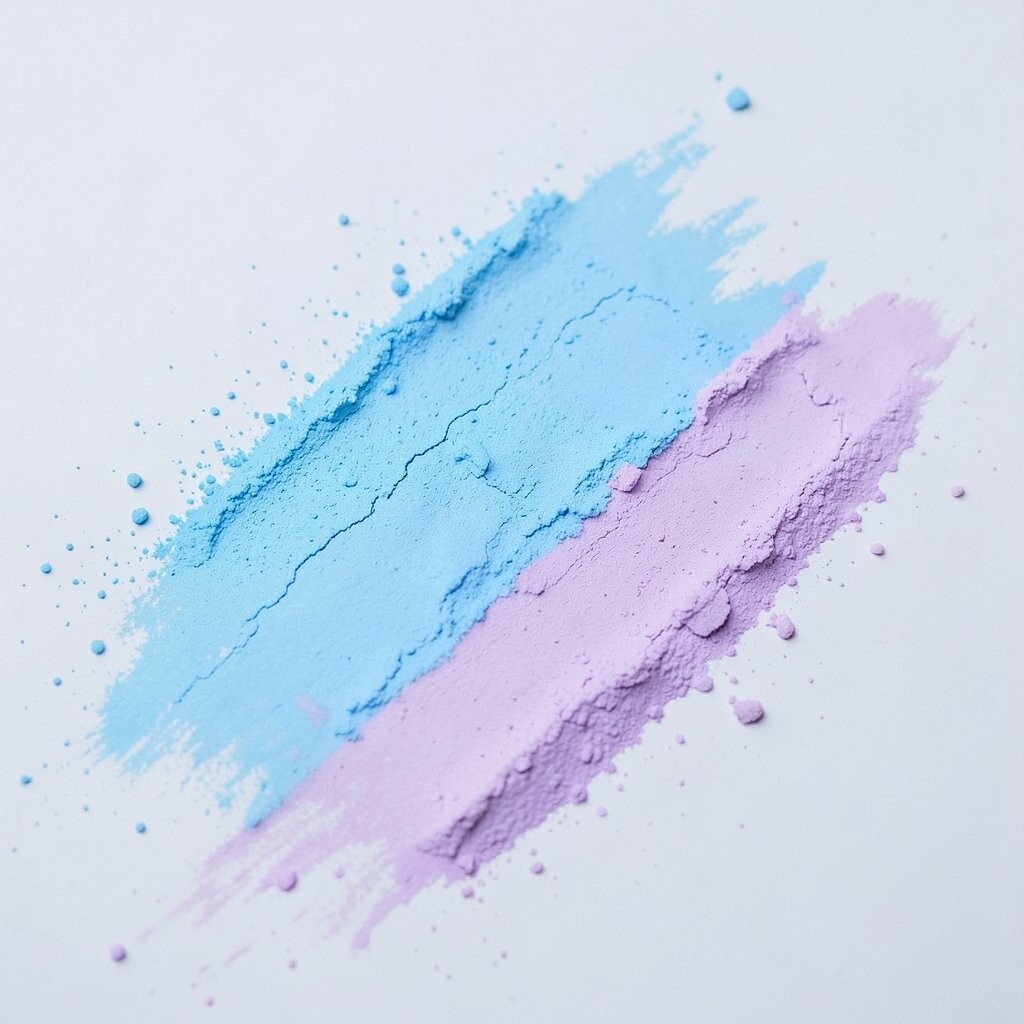
This gradient starts like powdered paint and slides into periwinkle. The shift feels smooth, like a slow inhale.
It is great for onboarding screens, wellness apps, and any UI that should feel friendly. A tip is to pair it with rounded buttons and generous padding. Choose a mid-tone blue for icons so they still pop without looking harsh.
For personalization, let users pick “cool” or “slightly warmer” blue variants while keeping the same softness. If you are working with a design system, define the colors as two or three stops so themes stay consistent. Costs are mostly time and testing, since the assets are lightweight and easy to maintain.
3. Coastal Twilight Blend
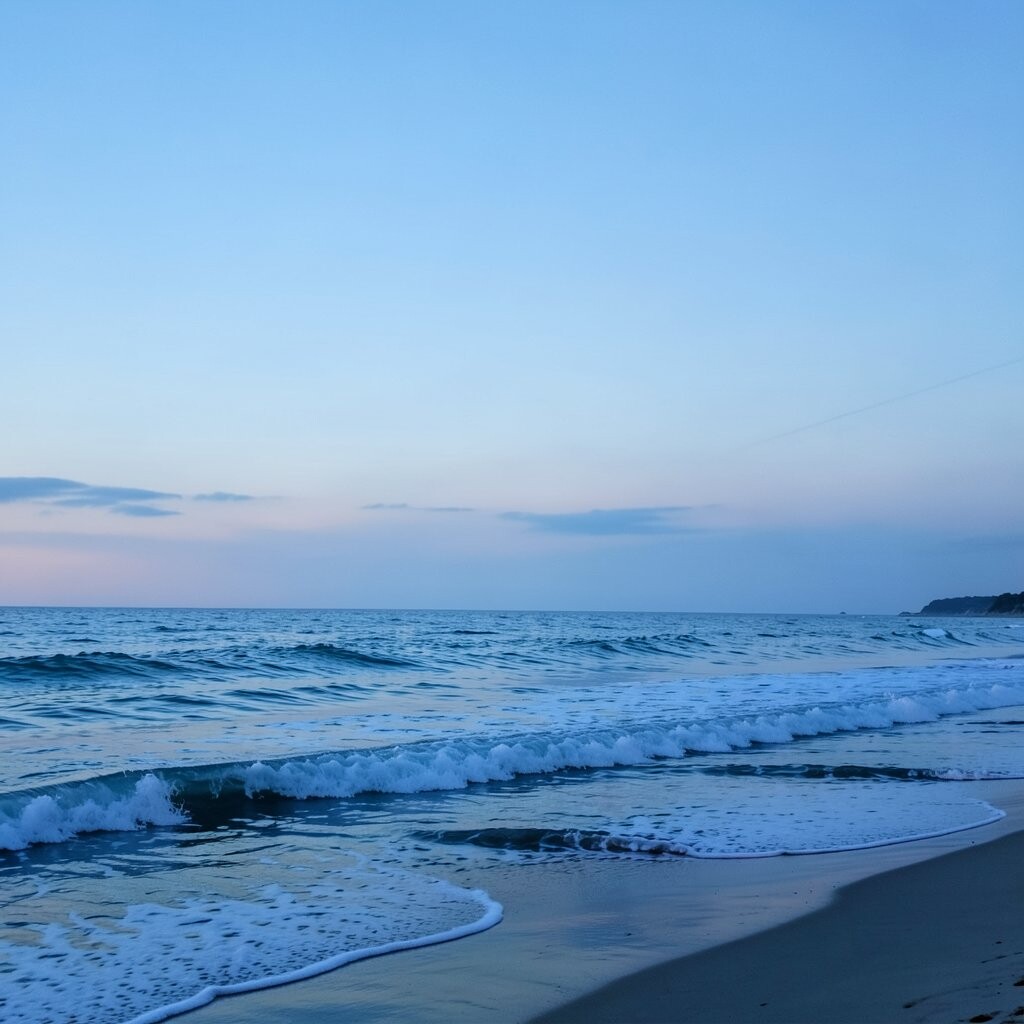
Think of a shoreline where the evening light softens everything. The blend moves from cool teal-blue to deeper night blue.
Because it adds depth without strong contrast, it works well for dashboards and cards. Try using it for the background of summaries, charts, or pricing panels. If you add charts on top, keep grid lines faint and thin to match the calm mood.
To make it unique, add a very light diagonal direction so the page feels gently guided. You can also vary the intensity by using a lower opacity overlay above images. This approach usually stays low cost since it can be done with CSS gradients instead of separate image files.
Current trend-wise, people like “glass-like” surfaces over subtle gradients, so consider a translucent layer for cards. Just watch the text contrast, especially for small labels. Test on both dark and bright displays so the twilight tone stays readable.
4. Watery Glass Overlay

Use a gradient that looks like light passing through clear water. A lighter upper blue with a barely-there mid shift creates that glassy calm.
This is ideal for modals, settings screens, and notification drawers. Keep the overlay transparent so the content behind it stays visible. If you want personalization, adjust the blur level based on user preference for “softness” or clarity.
5. Glacier Corner-to-Center

Start the gradient at one corner and let it drift toward the center. The effect feels stable, like a glacier slowly changing shape.
It is a nice choice for landing pages because it subtly frames the main message. Place your headline near the brightest area so it reads naturally without extra styling. To keep it calm, avoid aggressive color steps and instead use several close stops.
This design can be personalized with slight hue nudges toward cyan or toward steel-blue. On the cost side, it is inexpensive because you can render it with pure CSS and reuse it across pages. A current trend is “spotlight gradients,” and this corner-to-center style fits that look while staying gentle.
6. Soft Aegean Drift

A pale sea-blue shifts toward muted azure, like waves smoothing out sand. The gradual movement helps the page feel welcoming and relaxed.
This gradient works well for feature sections and blog headers where you want a calm reading experience. Pair it with clean typography, low-contrast dividers, and icons that match the cool palette. For practical use, set the background on a container and keep the content area solid white or near-white for clarity.
7. Skyline Fade with Subtle Depth
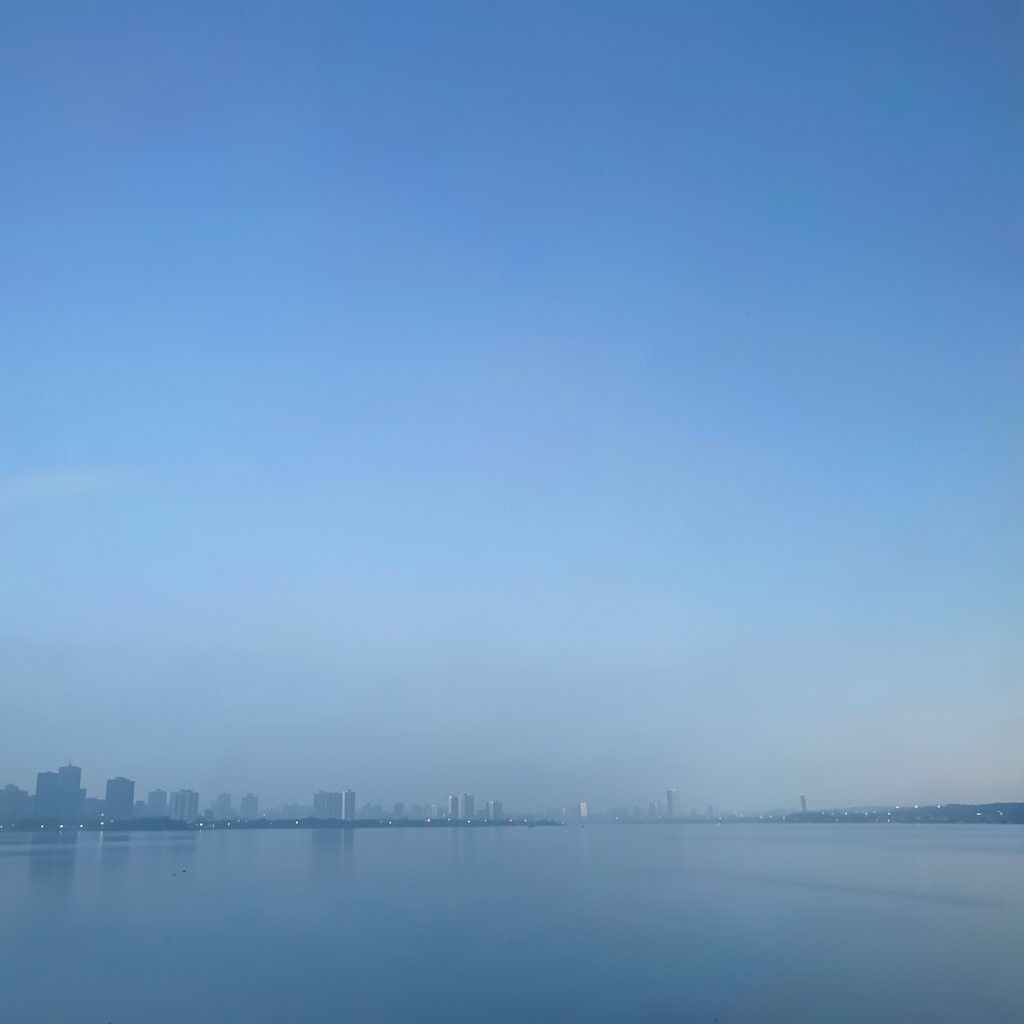
Imagine distant buildings under a soft blue haze. The gradient includes a gentle darkening layer that adds quiet depth.
Use it behind navigation bars or sidebar headers to create separation without harsh lines. A simple tip is to keep the darkest stop limited to a thin region so it does not overpower the layout. If you have interactive hover states, slightly increase brightness instead of switching to high-saturation colors.
To personalize, you can provide seasonal themes like “spring sky” and “winter haze” while keeping the same layout structure. Budget-wise, gradients cost almost nothing compared to detailed illustration, and they scale well on different screen sizes. As a trend, subtle “depth layers” are popular, and this skyline-style fade delivers that feel.
8. Indigo Cloud Veil

This gradient moves from light blue to indigo in a fog-like way. It looks dreamy, but it stays restrained.
It is especially good for login screens, password reset pages, and calming informational flows. Keep form inputs white or softly tinted so the content stays readable. For uniqueness, add a faint radial highlight in the center to guide attention.
If you want practical personalization, let users switch between “cloud” and “sea” versions by changing only the indigo intensity. The cost is still low, since it is a gradient recipe and not a new asset library. Right now, many product teams like “soft contrast” design, and this veil fits that direction.
One more tip: test the gradient behind both light and dark text. Some indigo shades can make dark text look muddier on certain monitors.
9. Denim Evening Gradient

Denim tones fade gently from slate-blue to a calmer midnight hue. The look feels familiar, steady, and easy to live with.
This gradient is great for pricing pages, account pages, and any section where you need a sense of trust. Use it in a narrow band behind key elements, like a “starting at” label, rather than covering everything. Keep borders and icons slightly muted so the denim calm stays consistent.
To personalize, consider varying the background intensity based on page importance, such as a stronger denim for main actions. It usually costs little to implement because it is just layered CSS values. A trend you may notice is “textured calm,” so you can add a very subtle grain overlay if it fits your brand.
Be careful with accessibility: denim can lower contrast if you use deep text. Choose either near-white text or a very dark but crisp color for labels.
10. Polar Light Ribbon

A ribbon-like gradient sweeps across the page as if aurora light is passing by. The colors stay within soft blues and pale teals.
This is perfect for backgrounds that need movement but still feel gentle. Try using it behind large illustrations or on wide banners where space allows the ribbon to breathe. A practical tip is to keep the ribbon slow and wide so it does not distract from reading.
For uniqueness, adjust the direction slightly for different pages, like left-to-right on a home page and top-to-bottom on a profile page. Costs are low if you use CSS gradients and reuse the same underlying stops. In current trends, designers like “animated gradients,” but even a static ribbon feels modern.
11. Quiet Lagoon Fade

Start with soft aqua near the top and fade into muted ocean blue below. The lagoon vibe stays serene, not playful or loud.
This gradient works well for content cards, education sites, and community spaces. Keep the main background neutral and use the gradient only as an accent layer to preserve readability. If you have links, give them a slightly brighter blue so they feel clickable without breaking the calm.
12. Seafoam to Pale Azure

Seafoam green meets pale azure in a smooth, friendly blend. It feels clean, like fresh water in morning light.
This palette is a good match for health, fitness, and productivity products. Use it on empty states, soft callout boxes, and gentle background panels. A helpful tip is to keep icons and labels in the same cool family so the interface feels coherent.
To personalize, you could swap the seafoam intensity to match user goals, like “calm” and “energize,” while keeping the same overall brightness range. Implementation is inexpensive since the gradient can be defined once and reused. A recent trend is using soothing pastels sparingly, and this one provides that pastel calm with clarity.
13. Starfish Shore Glow

This gradient feels like pale blue light reflecting off sand. The glow is subtle, giving a warm-cool balance without turning orange or yellow.
It is a great background for storytelling sections, team bios, and article headers. Pair it with warm neutrals and soft shadows for a balanced, human feel. For practical use, avoid heavy shadow contrast; instead use gentle elevation and soft edges.
To make it unique, add one faint darker stop near the lower third so the page has a grounded finish. Cost considerations are minimal because gradients are lightweight and easy to tweak during design reviews. The current trend of “soft glow UI” suits this style well, as long as you keep glow effects low-intensity.
Remember to test your text contrast at the lowest-opacity areas too, not only the brightest region.
14. Cloudburst Minimal Blue

This gradient barely changes tone, like a cloudy sky that still feels bright. The result is minimal, steady, and quietly professional.
Use it for settings screens and forms when you want the interface to disappear behind the content. Keep input backgrounds solid and let the gradient act as a soft backdrop only. Personalization can come from letting users choose between “light calm” and “cool calm” by shifting the gradient slightly toward cyan or steel-blue.
15. Glacier Bloom with Soft Edges
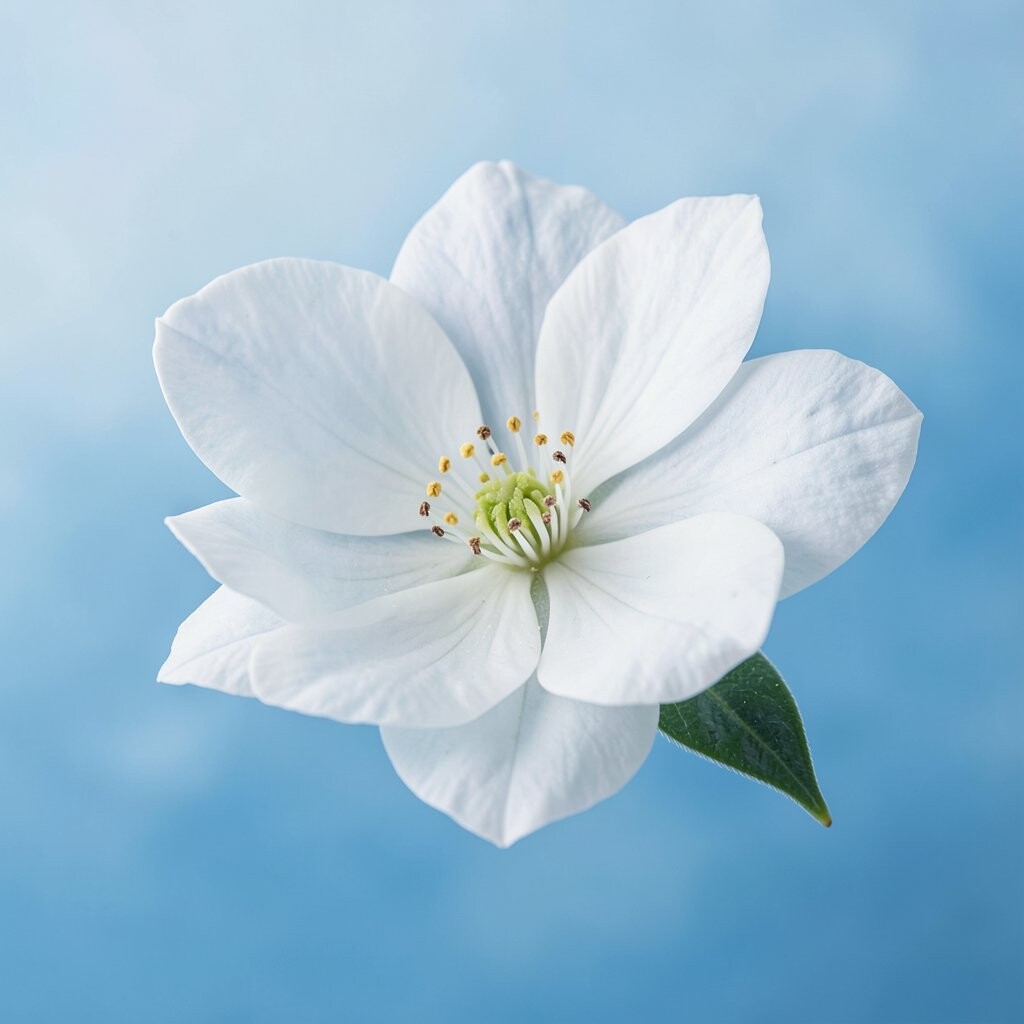
The gradient looks like frost spreading outward, but it stays smooth and clean. Light blues broaden into gentle gray-blue tones.
This style is ideal for onboarding steps, progress indicators, and calm product tutorials. A practical tip is to use it behind a timeline or steps container, since the soft edges make the structure feel less rigid. Keep borders thin and choose typography that is clear at smaller sizes.
For uniqueness, combine the gradient with a subtle border highlight that matches one of the lighter stops. Costs are low because it requires no extra images, just careful color selection. As for trends, designers are leaning toward “quiet structure,” and this glacier bloom provides structure without visual weight.
If you animate it, move it slowly and reduce opacity shifts so it still feels soothing rather than energetic.
16. Soft Horizon Side Fade

A light horizon blue starts at one side and fades as it moves across the layout. The effect feels like open space, making everything feel calmer.
This works wonderfully for split layouts, such as an image panel with text on the other side. Keep the text panel neutral and let the gradient side create focus through gentle contrast. For practical tips, align the gradient direction with your reading flow so the eye travels naturally.
Personalization can be handled by mapping the gradient intensity to user theme settings. It is also budget-friendly because you can implement it once and reuse it across multiple templates. Right now, many designs favor “side lighting” backgrounds, which this horizon side fade supports in a subtle way.
17. Serene Azure Center Glow

The gradient concentrates its brightness near the center, like a calm spotlight. Outside that glow, the blue fades into cooler, quieter shades.
This is perfect for landing pages, feature spotlights, and hero areas where you want attention without clutter. Try placing your main CTA in the brightest zone and keep surrounding UI simple. For personalization, let different user segments use slightly different glow radii, so the emphasis can feel tailored.
Cost considerations are usually favorable since it can be built with CSS and adjusted quickly for A/B testing. If your brand uses icons, keep their stroke width consistent so they match the smooth center focus. A current trend is focusing attention with gentle gradients instead of heavy borders, and this center glow delivers that trend in a soothing way.